You may have seen our guide on “How to setup ODBC connections for Sage 200”. If you have, then you will know how easy it is to setup. Once you have done this then you have the ability to extract your data out of sage 200 and straight into Microsoft Excel. There are multiple options available for what data you would like to export out of Sage 200, and I have put together an example.
I have created a simple report in Excel, which uses the ODBC connection we have setup to extract sales order details. I have then incorporated multiple filters, so that each time you refresh the spreadsheet, it will only bring through the orders relating to the set criteria.
In this case, the spreadsheet brings through live sales orders that are waiting to be dispatched. The list only brings through orders that are due to be dispatched today. It also highlights which orders are the most important, which I have simply done by colour coding the spreadsheet to highlight the highest priority orders. All of the information is available within sage 200 but you would need to run endless reports to gather this information, rather than giving you a very simple but effective list, which even refreshes automatically!
This spreadsheet could aid your team to track live orders that are due for dispatch. It will make sure that the orders with a higher priority are looked at first. It also reduces the amount of reports/enquires the users will need to run in Sage 200 as the relevant information will all be available within this dashboard. This should save time in day to day processes for the users involved in Sales Order Processing.
Here is an example of the spreadsheet:

The fields that I have included on the spreadsheet are not all the available fields to choose from, I have chosen the fields that I feel are relevant for Sales Order dispatching. I have included a screenshot of the Sales Order entry screen to display where some of the fields are originating from within Sage 200.

You may have noticed that the report has pulled through the fields “Priority”, “Sales Manager” and “Carrier” out of sage, I have done this using analysis codes.
Overview of how I setup the Sales Order spreadsheet
Step 1
Using Microsoft Query in Excel, I have pulled through the sales order details out of the tables in SQL. I have chosen which columns to include, which will give me all of the information needed from this report. I have also brought across details of the customer, from the sales ledger table in the database. You can include different areas from sage 200 into your spreadsheets as long as they can be linked. I have also added a filter to bring through live sales orders only. You may notice that the headings of the columns are different to that in the database, I have amended this within Microsoft Query as if you edit it within your spreadsheet, it will not save after it has refreshed.


Step 2
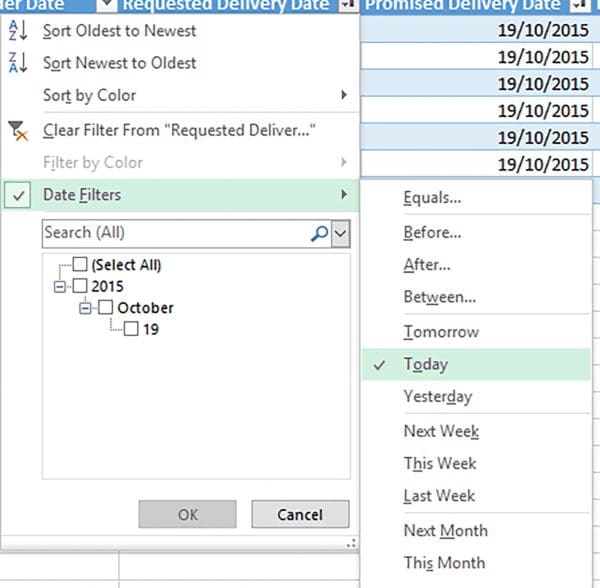
I now have a list of all Sales Orders on the system. However I only want to see the orders which are due for dispatch today. To do this, you must add a filter on the promised delivery date column, in this example, you must choose to filter by today’s date as shown on the screenshot.
Step 3
We now have the list of records we wanted to extract. You can leave it like this if you wish, but I have added a simple colour code to highlight the highest priority orders. This should help the user in highlighting the key orders that need to be looked at first. You can use this function in different ways but this is just one useful example. I have done this by using the conditional formatting function.

Step 4
Now we have setup the layout, I have set this to refresh automatically so that the user does not need to manually refresh the spreadsheet. This is done in the connection properties as shown, and in this example I have set it to refresh every minute.

If you are interested in setting up spreadsheets similar to this then please get in touch with the team at itas. You may even want to use the example spreadsheet that I have included, or take a look at the spreadsheet ideas I have listed below. If there is a specific spreadsheet that you would like which may help your business, then let us know and we may be able to help.
ODBC Spreadsheet Ideas:
– Purchase Orders awaiting arrival
– Stock Levels and Locations
– Customers exceeding their credit limit
– Top selling stock items
– Projects using transaction analysis codes
– Sales Orders that have passed there expected delivery date


Luc is a proud member of the itas team. He believes in helping and supporting people when they are in need. Whether this is a customer, colleague or cheering for Manchester United at the weekend. He is always looking to improve his knowledge within the team and enjoys the new challenges that are presented on a daily basis. He has a wide range of knowledge for various modules within Sage 200, Sage CRM and also Sage 200 add-ons such as Spindle Document Capture. When out of the office, Luc is an avid sports fan and spends a lot of time supporting his favourite teams.