
Sage 200 is full of features that allow you to not only get the most out of your system and data but also streamline your day to day work. The problem is, some of these features aren’t made all too apparent to you from the outset. These features have all been added to make using Sage 200 easier for you.
1. Adding new columns into the list views
This may be a tip that you have come across before. However, please don’t underestimate the power of customising your list views!
These can be exported into Excel for further analysis and also filtered on to ensure you are only getting relevant/specific data. You may also find taking out some of the existing columns keeps your list nice and tidy. The idea is to make using Sage 200 as easy as possible!
Firstly, how do we add more columns to our list views?
To begin to open up the Customer List, once there you will need to right-click on the list itself and you will see the following options:

Customer List View – Sage 200 Summer 2019
The one we are interested in today is the ‘Columns‘ option. The column we are going to add is the one named ‘Date account details last changed‘.
As you would imagine, this will then give you a column which lets you know the last time anything was changed for the account – a pretty handy field to have to keep an eye on what’s happening in your Sales Ledger!
You can see the vast selection of fields available to you by right-clicking, and I’m sure your imagination is currently running wild! But hold on, let’s just do one more thing. I never use the ‘Short Name’ column, so let’s remove it.
Again, right-click on the list, go to columns and find the ‘Short Name’ column. You’ll notice there is a tick against this field, this indicates that it is already visible in the list, simply right click on the field and that pesky column will be gone!

2. Workspaces in Sage 200
Workspaces are a great ‘hidden’ feature in Sage 200… I say hidden because not everyone knows about them.
However, you will have probably seen the Menu Item for them before, they have a small Globe icon next to them and can usually be found in the ‘Enquiry‘ folders within each of the ledgers (e.g. Sales Ledger > Sales Enquiries > Current Transactions).
Workspaces are like a list view, as they show details about transactions, accounts, stock items, etc. But, they are much more powerful than your standard list and are a great tool when using Sage 200.
Don’t believe me? I’ll show you!
Let’s stay in the Sales Ledger and go to Sales Enquiries > select the Account workspace:

Sales Ledger Account Enquiry Workspace Menu Icon – Sage 200 Summer 2019
You’ll notice that this is split into two halves. The top being the ‘Customer List‘ and then the bottom being details about the contacts from the account you have selected.
However, if you click on the word ‘Contacts‘ you will see a drop-down menu appear allowing you to pick from several different areas of the customer account. This can be used as a replacement for going into the usual list view and performing an ‘Account Enquiry‘ on the customer.

Sales Account Enquiry Workspace – Sage 200 Summer 2019
There is also the ability to search on both halves using the text boxes above each column. You can also add in or take away columns by right-clicking and going to ‘Column Selector‘.
3. Filtering on your lists when using Sage 200
So you’re trying to find a Live Sales Order in your Sales Order List…
It was entered a few months ago and since then, many many orders have been entered and completed on the system. Usually, you would then need to trawl through the list and find it, but what if I told you there was another way? (And I don’t mean using the search bar at the top!)
The other way of doing this would be to set up a ‘Filter‘ on the list to suppress any ‘Completed’ orders, keeping your list tidy and your eyes away from unnecessary strain.
To add on a ‘Filter’ simply click on the ‘Funnel’ icon next to the search bar in the Sales Order List. You will then see the below pop up:

List View Filter Funnel – Sage 200 Summer 2019
Click ‘New‘ and enter a name as above.
You are then asked to add in a condition. I have set mine up as below:

List View Filter Example for SOP Document Status – Sage 200 Summer 2019
Once you’re happy with that, click ‘Save‘ and then hit the drop-down next to the search bar at the top of the list. You will see your new magic filter there!
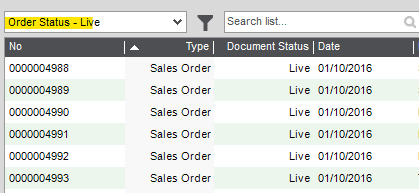
Selecting A New Filter for the SOP List – Sage 200 Summer 2019
This is a very simple example of how this can be used to streamline another laborious task.
There are many more features within Sage 200 to make day to day processing more efficient. Look out for more of our Sage 200 Tips blogs. Alternatively, you can enquire about some Sage 200 training or check out our free Sage 200 help guides.


We are a multi-award-winning, platinum Sage Partner, specialising in Sage 200 Professional, Sage 200 Standard, Sage Intacct and Sage 50 accounting solutions.
At itas, we believe in working in partnership with you to deliver the perfect solution that you want and need. We will design a tailor-made business management solution specifically for you and your business, giving you the freedom to focus on what you do best.