In Sage’s quest to provide the best user experience possible, they release quarterly updates to Sage Intacct. This includes upgrades to existing functionality and brand-new features to get the most out of your accounting software. The best thing is a lot of these updates come from your requests, the people actually using the software. If you’re a current Intacct user and have some ideas on improvements that you would like to see in future updates, click here to have your say!
This is the second release of the year, the official release and documentation will be available from May 12th 2023.
You can see the full list of release notes by clicking here. In this blog, we will be showing you the highlights and our favourite features from the release!
Things to look out for!
Updates to import templates
Sage has made some changes to a few import templates. The changes have been made to make the templates more flexible and easier to use.
It is best practice to always download a fresh template from the Import Data page in Sage Intacct, to ensure you have the most up-to-date version.
The following templates have been updated:
- General Ledger journal entries
- Accounts Payable Vendors
- Accounts Receivable Customers
To find these templates in Sage Intacct go to Company > Setup > Import Data.
Role-based dashboards
There are some new dashboards containing relevant reports, tasks, and other information, this relates to companies that were created using the Service Industry QuickStart template.
The dashboards have been added to the following roles:
- AP manager
- AR manager
- CFO
- Controller
- Revenue department manager
- Support department manager
These dashboards will be included automatically in new Service Industry companies. If you are an existing Service Industry company, you can install the dashboards from the Dashboard library.
If you’re unsure whether your company was set up using the QuickStart template, you can check by going to the Company Information page.
Go to Company > Setup tab > Configuration > Company. On the Accounting tab, the QuickStart template field shows what template was used, if any.
Company and Administration
Automated email to locked-out users
This new automated email is for those people who are always forgetting their passwords. You know who you are…
Previously when you were locked out of Sage Intacct you may not know the reason. You will now receive an automated email explaining why you have been locked out and what you need to do to unlock your account.
You won’t need to change any settings on your user’s profiles, this will automatically be applied.
SIREN and SIRET numbers are now supported
SIREN and SIRET numbers are used to identify companies that are created in France.
A SIREN number is a 9-digit number to identify a company and a SIRET number is a 14-digit number that starts with the SIREN number and the last 5 digits identify the company’s actual location.
How will it work?
You will be able to add the SIRET number to the following places in Sage Intacct.
- Company information
- Location dimension
- Entity information
- Contact information
For more information on how to set this up, click here!
By adding the SIRET number to the above places such as the location dimension, you will be able to tag transactions against the SIRET number and run reports based on this new location.

Accounts Receivable
Edit the reversal date on posted payments
It’s easy to make small mistakes when you’re inputting transactions, now you have the ability to change the reversal date on posted payments if you mess up the first time.
You will need to enable this feature in the Accounts Receivable configuration page, by selecting Enable edit of reversal dates. 
- Go to Accounts Receivable > Setup tab > Configuration.
- Select Enable edit of reversal dates.
- Select Save.
You can also control who will be able to edit this information, as once it is enabled, it will need to be assigned to a user’s permission or role.
A new way to access customer records
When you are in the customer’s list, if you drill into the customer’s name the customer record will open. Previously, this took you to the AR Ledger report.

Cash Management
Link credit card transactions with employee expense reports
If your company uses a corporate credit card for expenses, you can now easily include them in the expense reports for faster data entry. This feature helps automate your employee expense creation process.

You can now enable your credit card to be used for employee expenses. When you enter a non-billable credit card transaction, you can associate a line item with an employee. These transactions then become available for selection in an expense report for that employee.
Once you have created some credit card transactions, they will post to an employee expense-clearing account. They will stay in the clearing account until you code them to the appropriate expense account using the expense report.
For added flexibility, you can split a single credit card transaction into separate expense lines on the expense report. For example, you can split a credit card transaction for airfare and meals into different expense categories on the expense report.
General Ledger
Lock Closed Periods
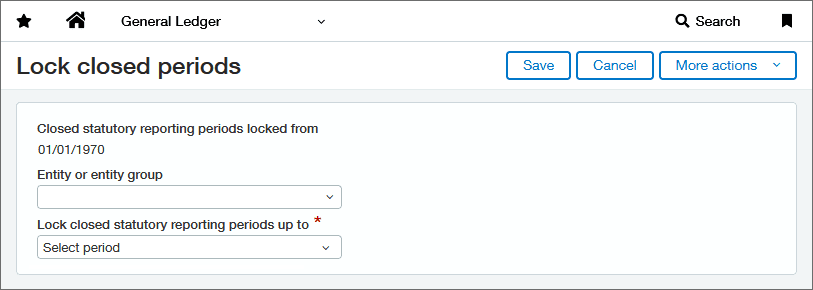
Once you have closed your books, you can now lock the period so that it cannot be reopened. Sage has added this feature so that you can produce official reports for that period without worrying if the information in the system has changed.
How to set up the feature
- Firstly, configure the feature, go to General Ledger > Setup tab > Configuration.
- In the Accounting settings section, under Transactions, select Enable closed statutory reporting periods to be locked.
- Then go to the General Ledger permissions page and assign users the Lock closed periods permission.
- Once you have completed the above steps go to General Ledger > All tab > Books > Lock closed periods
If you use this function in the top level and do not specify an entity or entity group it will lock the period for all entities, so be careful when locking your periods.
If you have locked a period by mistake you can unlock it by locking the preceding period. For example, if you have locked 2023 by mistake, to unlock it you would lock up to December 2022, this would then unlock all of 2023.
Conclusion
These have been our highlights from the second Sage Intacct 2023 Release. To see the full list of changes, click here. If you have questions about any of the above changes feel free to get in contact with us .
For those of you looking for some extra guidance on Sage Intacct or just want to learn more, we have a library of Sage Intacct help guides that are growing weekly, and are free to use.
If you’re not currently a Sage Intacct user, but interested in finding out more about the product, click here. We also have an on-demand demo of Sage Intacct that you can watch whenever you have a spare 20 minutes! You can watch it here.


Callum provides 1st line support for all our Sage software solutions. As a newer member of the Itas family, he is always looking to improve his knowledge around Sage and is learning about new modules and add-ons regularly.
When he’s not in the office, he enjoys to be outdoors, you’ll either find him playing football or riding his mountain bike around a forest.