We know that sometimes you may run into an issue and you want a resolution, fast. But sometimes, you just can’t find the answer you need there and then.
We understand that you may have questions about using Sage 50 effectively, so we’ve compiled a list of some of the most frequently asked questions. We’ve tapped into the expertise of our top Sage 50 professionals to provide you with quick and straightforward answers.
Let’s dive in!
How do you Amend a Posted Invoice?
To amend a posted invoice in Sage 50 Accounts, follow these simple steps:
- Firstly, go to “Transactions.”
- Highlight the transaction you wish to amend.
- Click “Edit” at the top of the screen.
- Once in the transaction, click “Edit” again to make the necessary changes.
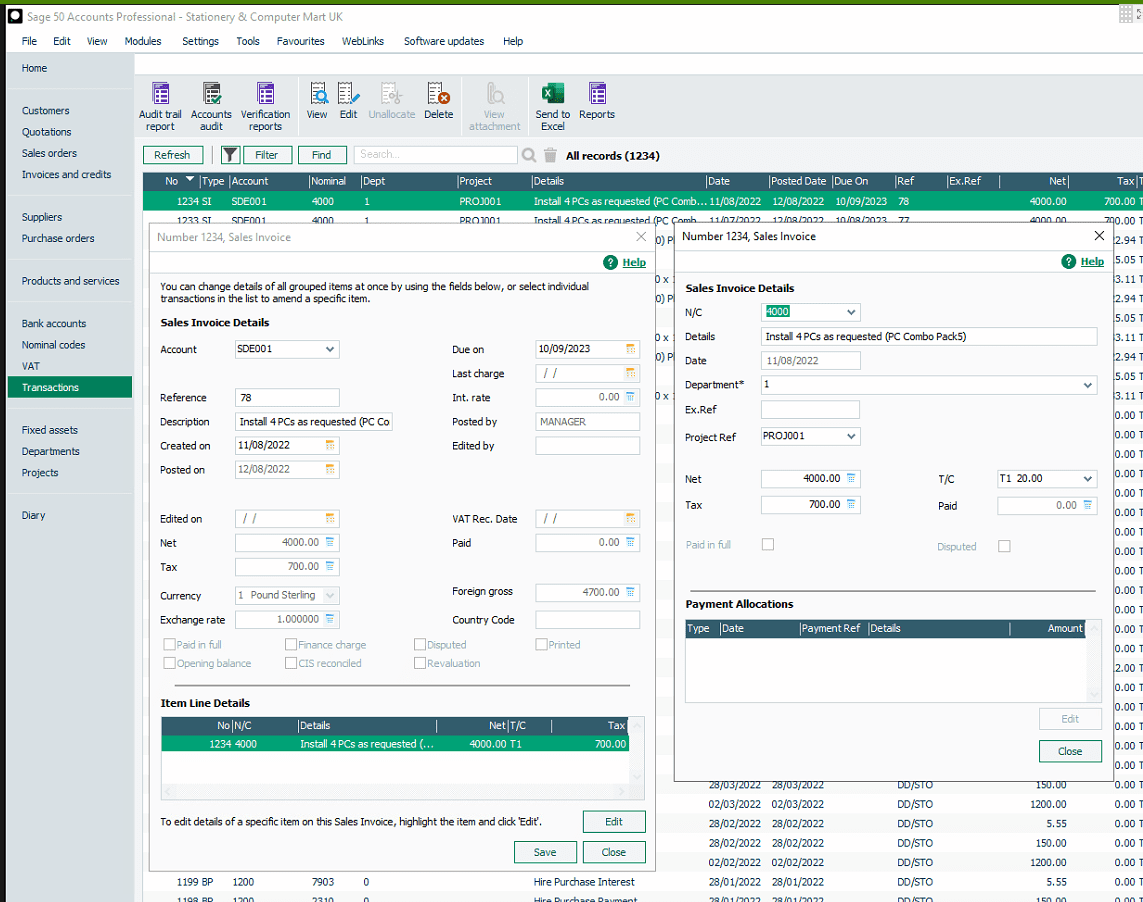
Please see the below for Sage’s article about correcting an invoice:
https://gb-kb.sage.com/portal/app/portlets/results/viewsolution.jsp?solutionid=200427112224083
How do I change the Company Name?
If you need to change your company name in Sage 50 Accounts, here’s what you should do:
- Open Sage 50 Accounts at the main site.
- Click “Settings” and then “Company Preferences.”
- Amend the details as required.
- Click “OK” to save the changes.
Please see the below for Sage’s article about Changing the Company Name:
https://gb-kb.sage.com/portal/app/portlets/results/viewsolution.jsp?solutionid=200427112605378

How do I edit Invoice Templates?
Customising your invoice templates is a breeze with Sage 50 Accounts:
- Click “Invoices and Credits.”
- Choose any invoice, credit, or order record.
- Click “Print.”
- Then, click “Layouts.”
- Select the invoice or credit note layout you want to change and click “Edit.”
- You can make the following changes to your layout:
- Add an image or logo.
- Include text boxes for payment terms or bank details.
- Add data fields from Sage 50 Accounts.
- Insert lines and boxes to highlight or separate information.
Please see the below for Sage’s article about Editing your invoice template:
https://gb-kb.sage.com/portal/app/portlets/results/viewsolution.jsp?solutionid=200427112301531
How do I Highlight More Than One Line?
When you need to select multiple records, you have two methods to choose from:
- Windows selection style (Default setting): Use the Shift and Ctrl keys to select multiple records.
- Sage selection style: Click each individual record to select them.
Please see the below for Sage’s article about selecting multiple lines:
https://gb-kb.sage.com/portal/app/portlets/results/viewsolution.jsp?solutionid=200427112311552
How do I Make the Font Bigger?
To change the font size in Sage 50 Accounts on-screen, unfortunately, you will need to adjust your Windows settings. As Sage doesn’t have a specific font size setting.
Please see the below for Sage’s article about amending Font Size:
https://gb-kb.sage.com/portal/app/portlets/results/viewsolution.jsp?solutionid=200427112605356
How do I Add Bank Details to Invoices?
Here’s how to add your bank details to Sage 50 invoices:
- Click “Invoices and Credits.”
- Select any invoice, then click “Print.”
- Browse and click on the layout you want to edit, then click “Edit.”
- Go to “Report” on the menu bar and select “Report Properties.”
- Enter a new name and description for your layout.
- If needed, delete unwanted items to make space for your bank details.
- Click “Toolbox” on the menu bar and choose “Add Text.”
- Click where you want your bank details to appear, enter your payment information, and press Enter.
- Adjust the text box as required.
- Save your changes by clicking “File” and selecting “Save As.”
- Finally, click “File” and then “Exit.”
Please see the below for Sage’s article about Adding Bank details to invoice layouts.
https://gb-kb.sage.com/portal/app/portlets/results/viewsolution.jsp?solutionid=200427112552810
Conclusion
And there you have it—a quick guide to some of the most commonly asked questions about using Sage 50 Accounts. Hopefully, these tips and tricks will help you navigate the software more effectively and efficiently.
Don’t forget that you can access our library of free downloadable Sage 50 guides, which will help you even further with certain processes within Sage 50 Accounts.
If you’d like to learn more about Sage 50 Accounts or have any further questions, please reach out to us! You can email us at info@itassolutions.co.uk, or alternatively, you can give us a call on 01824 780000.


Tom is one of our support heroes you will speak to or reach on email. He is certified in Sage 200 Financials, Commercials & Sage 200cloud Standard products, and a whiz at customizing reports and layouts.
Tom is the office geek, having knowledge in all areas of geekdom and is always the first choice when it comes to pub quiz members. In his spare time, Tom enjoys gaming, quizzes, and running and playing Dungeons & Dragons.