Getting your business Logo out there
Sage 200 Report Designer makes customising your reports really easy, all you need is some basic knowledge
If Report Designer is something you have trouble with, check out our tutor-led Online Report Designer Course and our free Anytime Learning Report Designer E-course.
With that out of the way, let’s start getting you on your way to more professional looking layouts and reports.
In this blog, I will show you step by step instructions on how to navigate your way around Report Designer. We will also be running through how to customise your reports and layouts. This will ensure that your business looks as professional as it can be.
Opening up Report Designer
Report Designer can be opened, either within the Sage 200 software, or individual layouts can be opened from where they have been saved.
This is what Report Designer looks like once the module is open within the Sage 200 system.

From here you can choose which reports you want to open. They could be business intelligence reports, previously customised reports or the default Sage reports.
For the purpose of showing you how to amend a report, I am going to choose the default folder, the layouts folder and open the ‘Free Text Invoice (single)’ which once opened looks like this…

Amending the layout
The next step is to simply move around some of the existing variables, to make room for the logo we will eventually add-in. To move the variables you can select them separately and use the drag and drop function to rearrange. My preferred method is to highlight all items that need moving by left-clicking and moving the mouse over everything before un-clicking. This highlights everything that the mouse moved over. Then by holding down the ‘Ctrl’ key on the keyboard, you can select some of the variables if you need to select more or deselect any.

Once the items have been selected, you can either left-click on the items and use the drag and drop function to move them, or you can use the arrow keys on the keyboard.
Adding a logo
To add a logo, select the function on the toolbar to ‘Add Image/ Logo’ and select the area you wish to add the logo onto the report.

A dialogue box will appear allowing you to browse for the image. On this report I will choose the image that is stored in my PC. I will leave the option on the dialogue box as default and select OK.
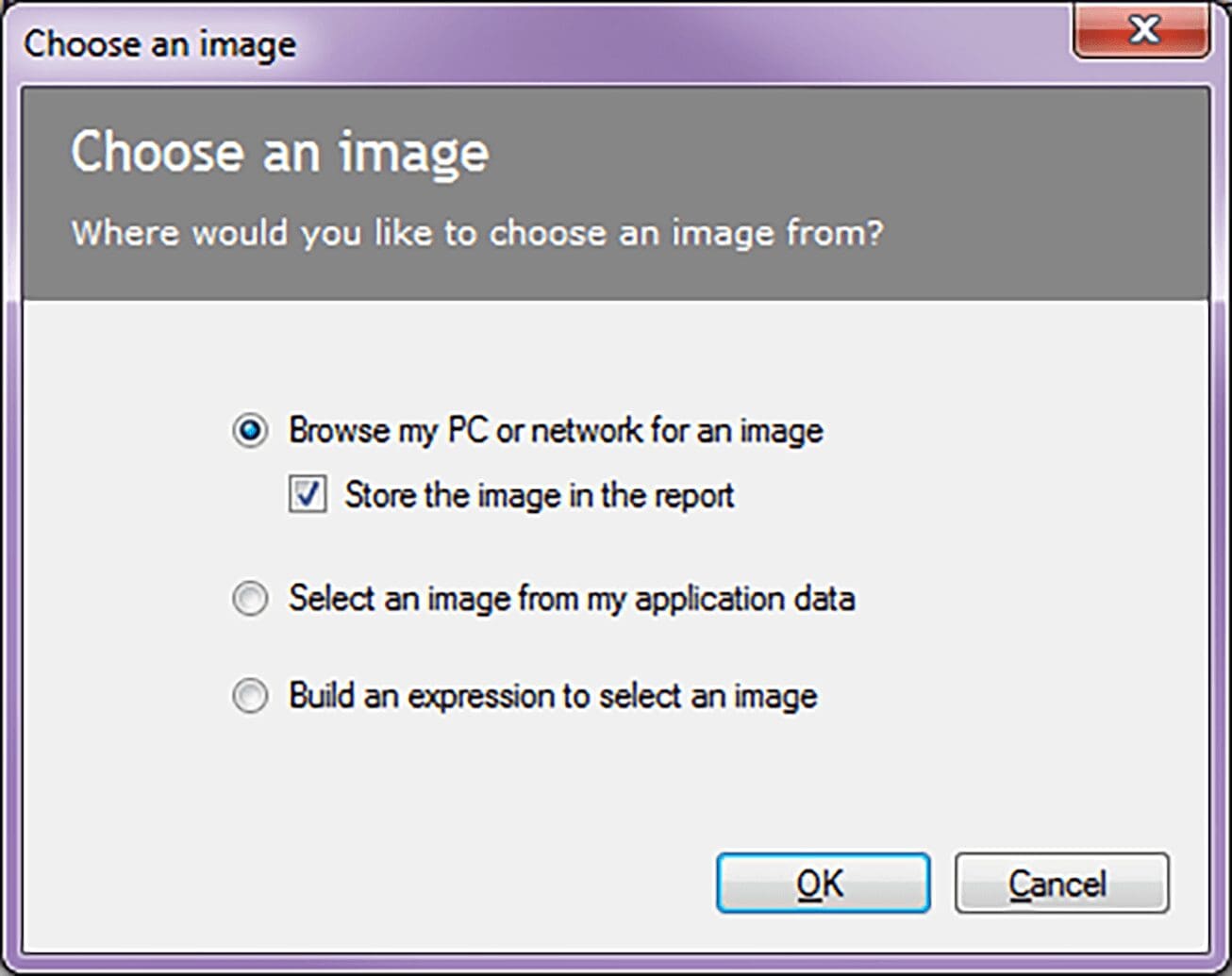
You will then be prompted to browse for the image you wish to use and select OK.
Once the logo has been added we can use the resize arrows to move or resize the image.
Preview the Layout
Once we are happy with the layout our next stop is to preview the layout.
From the toolbar on the top of the screen select ‘View and then select Preview’

* Quick Tip – On the preview screen. You can move the variables and the logo while on the Preview screen.
Saving the Layout
There are two different file locations to choose when saving the layout.
Go to ‘File- Save as’
Option 1- save in ‘Sage\reporting\company\nameofsagecompany\layouts\defaultnameoflayout
When using version 2013 and newer, the company folder will be available for selection. Providing the default layout name is given, the layout will automatically be chosen when saved here when selecting from Sage.
Option 2- save in Sage\reporting\custom\layouts\nameoflayout
If the default name is given and there is no layout with that name in the company folder, the layout will be automatically chosen.
When saving the layout with a different name within Sage you can select ‘File-Choose Layouts’ (v2015 ‘Tools- Choose Layouts) and browse to that specific layout.

I hope my blog today has been a simple and informative read. If you need any further assistance please do not hesitate to get in touch with our helpful support team!


We are a multi-award-winning, platinum Sage Partner, specialising in Sage 200 Professional, Sage 200 Standard, Sage Intacct and Sage 50 accounting solutions.
At itas, we believe in working in partnership with you to deliver the perfect solution that you want and need. We will design a tailor-made business management solution specifically for you and your business, giving you the freedom to focus on what you do best.