Recently, I saw a client who had been sold the Sage 200 Projects Module previously by another Sage Business Partner. They use Sage 200 purely as a finance package through various imports and when they actually looked into the projects module, for them, it was just too much. Most of their data entry is done through imports. However, they were looking at building a custom time-sheet module with their in-house developer. As a result, the module wasn’t really for them, but they did want to track project income and outgoings at a basic level. Hence, transaction analysis codes were the ideal solution.
A few qualifiers before we start…this workaround does not:
- Track budgets
- Track timesheets or expenses
- Produce billing
- Allow creation of any kind of project structure
- Allow analysis against different project areas – it is purely at a project header level
- Appear in any Sage 200 Business Intelligence reports
- Integrate with the SOP and POP modules
The Basics of Analysis Codes in Sage 200
Analysis codes provide you with additional ways to sort and report on your Sage 200 data. You can produce reports using the analysis code as reporting criteria. You can also filter data in your workspaces using analysis codes. An analysis code has two parts, code, and value.
- Code: The analysis code is the type of analysis you want to use. For example, if you want a breakdown of your sales by Region, you create a code of Region.
- Value: This is where you specify how you want to analyse the data. For example, if you have created an analysis code of Region, the values could be South East, South West, Midlands, Wales.
The analysis codes can be used in several Sage 200 modules. Once you have set the Code and the Value in the Accounting System Manager Module, you can decide which modules to apply it to.
Nominal level Project Analysis
Few people know or use the transaction analysis codes. This is a field on every single nominal transaction that allows you to select a PRESET value against every line – which we are going to hijack for projects. When setting up it can appear on the nominal posting tabs of PL Invoices, PL Credit Notes, SL Invoices, SL Credit Notes, and Journals.
This means that you can track any postings to the nominal and assign them against a transaction analysis code or as we are going to call it, a “Project”.

Setting up project tracking using transaction analysis codes in Sage 200
1) Enable transaction analysis codes
Go to Accounting system manager/system settings/transaction settings/use transactional analysis. You can also choose the name for the field…we are going to call it “Project”
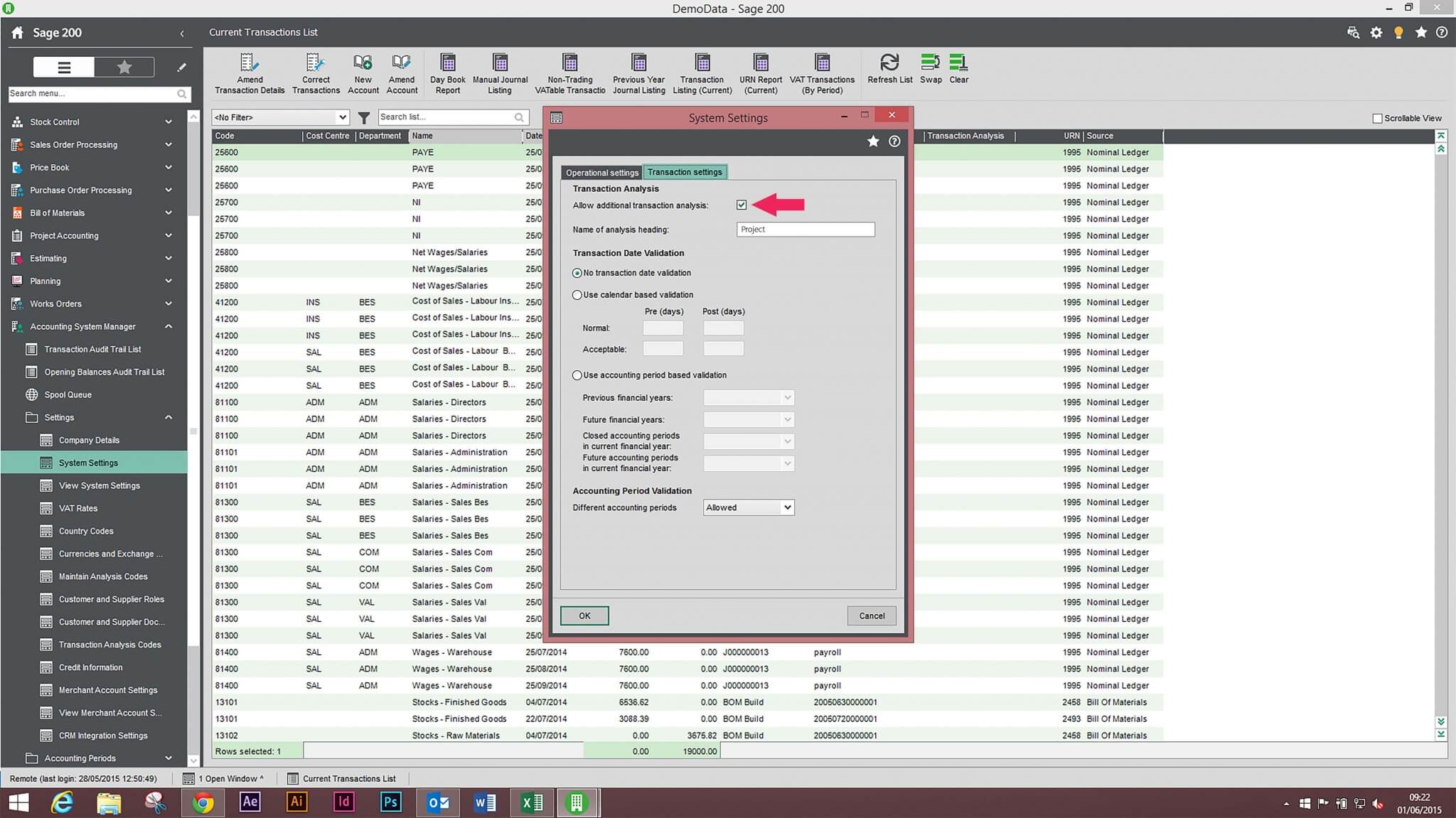
Transactional-Analysis-Screenshot
2) Set up your project codes
You cannot set up a project on the fly, they must be pre-set. You do this by going to Accounting System Manager/Settings/Maintain Transaction Analysis Codes. Only “active” codes can be selected when entering transactions.

Analysis-Codes
3) Enable transaction analysis codes in each ledger
We now need to enable transaction analysis codes in each ledger including PL, SL, and NL.
PL – Go to PL/Utilities/Ledger Settings/Use transactional analysis
SL – Go to SL/Utilities/Ledger Settings/Use transactional analysis
NL – Go to NL/Utilities/Ledger Settings/Use transactional analysis
If you would like more information, check out our Sage 200 Project Accounting module page or give us a call on 01824 780000.


We are a multi-award-winning, platinum Sage Partner, specialising in Sage 200 Professional, Sage 200 Standard, Sage Intacct and Sage 50 accounting solutions.
At itas, we believe in working in partnership with you to deliver the perfect solution that you want and need. We will design a tailor-made business management solution specifically for you and your business, giving you the freedom to focus on what you do best.